To set up a Google Shopping campaign, link your Merchant Center account to Google Ads, then go to New campaign, pick the Shopping campaign type, choose the Merchant Center account (and a feed label if you want only some products), set the bidding, budget and campaign priority, choose locations and networks, and create the first ad group with its product groups. A Standard Shopping campaign gives you bids by product group, a priority setting and negative keywords, which is why it still has a place next to Performance Max. In Adstudio you can do the same from a chat: describe the campaign and approve it on a card that shows every setting and product group bid before anything is created.
TL;DR
- Before you start: a linked Merchant Center account with products in its feed. The Merchant Center account can't be changed after the campaign is created, per Google's setup guide.
- Bidding: Manual CPC, or one of Google's three automated Shopping strategies: Maximize clicks, Target ROAS or Maximize conversion value. The last two need conversion tracking, per Google.
- Product groups: start from "All products", then split by brand, category, product type, custom label, item ID and more, up to 7 levels deep, with a bid on every leaf group, per Google.
- Priority: Low, Medium or High decides which of your Standard Shopping campaigns bids for the same product. Since Google's October 2024 change, Performance Max no longer automatically wins over Standard Shopping; Ad Rank decides.
- Not showing? Start in the Products → Diagnostics view in Google Ads; most causes are disapproved or out-of-stock items, an inventory filter or an excluded product group.
What do I need before I create a Google Shopping campaign?
Three things, per Google's guide to creating a Shopping campaign:
- A Merchant Center account linked to Google Ads. If no Merchant Center account appears when you create the campaign, the two accounts aren't linked yet. Pick carefully: the linked account can't be changed once the campaign exists.
- Products in the Merchant Center feed that are eligible to show. Disapproved, paused and out-of-stock products are not eligible, per Google's product diagnostics page.
- Shipping and country settings that match the campaign. Google lists missing shipping settings for the target country and a country or language mismatch between Merchant Center and the campaign as reasons a Shopping campaign doesn't run (source).
If you plan to bid on revenue, also check that purchase conversions with values are recorded. Our guide on how to check Google Ads conversion tracking walks through it.
How do I set up a Standard Shopping campaign in Google Ads?
This is the flow in the Google Ads interface, following Google's step-by-step guide:
- Click the plus button, then New campaign. Choose an objective such as Sales, or create the campaign without a goal's guidance.
- Select Shopping as the campaign type. Google offers Performance Max at this point; choose to continue with the Shopping campaign.
- Select your Merchant Center account.
- Optionally select a feed label. The feed label decides which data sources the campaign can advertise, so use it when a campaign should cover only one of your feeds.
- Name the campaign.
- Set budget and bidding. Pick a bid strategy (more on that below) and a daily budget, or a total budget, which needs a start and end date. You can also choose to bid for new customers only; by default a campaign bids equally for new and existing customers. Our guide on targeting only new customers in Google Ads explains that setting.
- Set campaign priority. Leave it at the default unless the same product is advertised by more than one Standard Shopping campaign.
- Choose locations, dates and networks. Shopping campaigns show on the Google Search Network and on Google search partners by default; untick search partners to exclude them.
- Create the first ad group. Name it, enter a default bid if you chose Manual CPC, and optionally set product groups.
- Review and publish. Changes can take 24 to 48 hours to be reviewed, and a Smart Bidding strategy can show "Learning" for up to 7 days, per Google. If you want the full picture of that period across platforms, see how long the learning phase lasts on Google, Meta and TikTok.
Two settings worth adding before launch: negative keywords for search terms you never want to pay for (Shopping campaigns have no keywords of their own, but they take negative keywords), and an inventory filter if the campaign should advertise only part of the feed, for example a sale range. Products outside the filter show as "Excluded by the campaign's inventory filter" in diagnostics.
Which bid strategy should I use for a new Shopping campaign?
Google lists four ways to bid on a Standard Shopping campaign: Manual CPC in the setup flow, plus three automated strategies on its automated bidding for Shopping page:
| Strategy | What it does | Needs conversion data? | When it fits |
|---|---|---|---|
| Manual CPC | You set a max CPC per ad group and per product group | No | You want full control of what each product group pays |
| Maximize clicks | Gets as many clicks as possible within your spend | No | A new store or new account with no purchase history yet |
| Maximize conversion value | Aims for the most conversion value for the budget | Yes | You track purchase values and want Google to bid on revenue |
| Target ROAS | Maximizes conversion value at the average return you set | Yes | You track values and know the return you need |
Our view: start a new account on Manual CPC or Maximize clicks, move to Maximize conversion value once purchases with values are flowing, and set a Target ROAS only when you know your break-even return. Google itself says that with a limited budget, Maximize conversion value without a target is the better choice, and that a new campaign can start with a low ROAS target to give it room to scale (source).
What bid should I start with on Manual CPC?
Work backwards from what a sale is worth to you. Your break-even max CPC is the amount you can pay to win one sale multiplied by your conversion rate. As illustrative arithmetic only, not a benchmark: if you can pay 12 dollars to win a sale and 2 in 100 product-page visits buy, 12 × 0.02 = 0.24 dollars per click. Bid at or under that for each product group, using your own margin and your own conversion rate, then adjust from the results of each group.
How should I split my products into product groups?
Every new Shopping campaign starts with one ad group holding one product group, "All products", bid at the ad group's default max CPC. From there you subdivide, per Google's product groups guide:
- Attributes you can split by: item ID, brand, category (Google's product taxonomy), product type, condition, custom labels 0–4, channel (online or local) and channel exclusivity.
- Depth and size: up to 7 levels per product group, in any order, and up to 5,000 product groups per ad group.
- Bids sit on the leaves. A group you've subdivided can't have a bid; each group under it gets its own, or is excluded.
- Each product appears in only one biddable product group per ad group (source).
A split that works for most stores:
- Level 1 by brand or category, whichever drives your margins apart more.
- Level 2 by a custom label you control in the feed, such as "bestseller", "high margin" or "clearance". Google notes custom label changes can take 24 to 48 hours to be usable.
- Item ID only for your top sellers, so each of them gets its own bid and its own row in reports, while the rest stays in the group above.
- Exclude what you never want to pay for, like low-margin accessories, instead of bidding them down to nothing.
Keep the "everything else" group under each split bid sensibly. New products land there automatically.
What does campaign priority do, and when do I need it?
Campaign priority only matters when the same product, for the same country, is in more than one Standard Shopping campaign, per Google's priority page:
- Every campaign starts at Low.
- The highest-priority campaign bids, even if a lower-priority campaign has a higher bid.
- If the highest-priority campaign runs out of budget, the next one bids.
- Between campaigns with the same priority, the higher bid is used.
The classic use is a sale: a High-priority campaign with an inventory filter for the sale items and its own budget, and your everyday campaign at Low for everything else. When the sale campaign's budget is spent, the Low one picks the sale items up again.
Should I use Standard Shopping or Performance Max?
They do different jobs, and since October 2024 they compete on equal terms. Google's announcement says Performance Max is no longer automatically prioritized over Standard Shopping for the same products in the same account; Ad Rank decides which campaign serves.
| Standard Shopping | Performance Max | |
|---|---|---|
| Where ads show | Google Search Network and, optionally, search partners | All Google channels from one campaign |
| Bids | Per product group, or an automated Shopping strategy | Google's automated bidding |
| Control | Priority, product groups, inventory filter, negative keywords | Asset groups, listing groups, audience signals |
| Works without conversion data | Yes, with Manual CPC or Maximize clicks | Built around conversion goals |
Standard Shopping is the stronger pick when you want to decide what each product group pays, keep spend on Search, protect margins with exclusions and negatives, or launch in an account with no purchase history. Performance Max fits when you want one campaign across every channel and have the conversion data to feed it. If you run both, see where your Performance Max budget goes so you know which campaign is earning which sale.
Why are my products not showing in Shopping ads?
Go to Campaigns → Products → Diagnostics in Google Ads (source). Each product is Eligible, Eligible (limited) or Not eligible, with the reason. Work through the reasons in this order:
- Policy disapproval, paused or out of stock. Fix it in Merchant Center's Needs attention page.
- No campaign advertises the product. The campaign or ad group is paused or ended, the product is in an excluded product group, or it isn't in any product group.
- Excluded by the campaign's inventory filter.
- Another campaign wins the product. If an item ID is in several campaigns, check bids and priority as above (source).
- Bids or targets too tight. A very low max CPC or a high ROAS target can keep products out of auctions.
- Merchant Center account issues: suspension, unclaimed website, missing shipping, or product data that expired because the feed wasn't refreshed within 30 days.
For ads that aren't showing outside Shopping, our guide on why Google Ads are not showing covers the account-wide causes.
How do I set up a Shopping campaign from a chat with Adstudio?
Adstudio's campaign builder creates and edits Google Standard Shopping campaigns from your Merchant Center feed. Connect your Google Ads account, then ask in plain words, for example:
- "Create a Standard Shopping campaign for the US from our Merchant Center feed, split by brand, Maximize clicks, daily budget 50 dollars."
- "In the Shoes ad group, split All products by custom label 0 and exclude clearance."
The assistant answers with an approval card that shows every value it will set, including the defaults: priority, search partners, which feeds, and the product group tree with each group's bid or exclusion. You give the bids, or the assistant proposes them with its reasoning and you accept them on the card. Brands and item IDs are checked against your feed, Google validates the exact plan before you click Create, and the campaign is read back afterwards to confirm it matches what you approved.
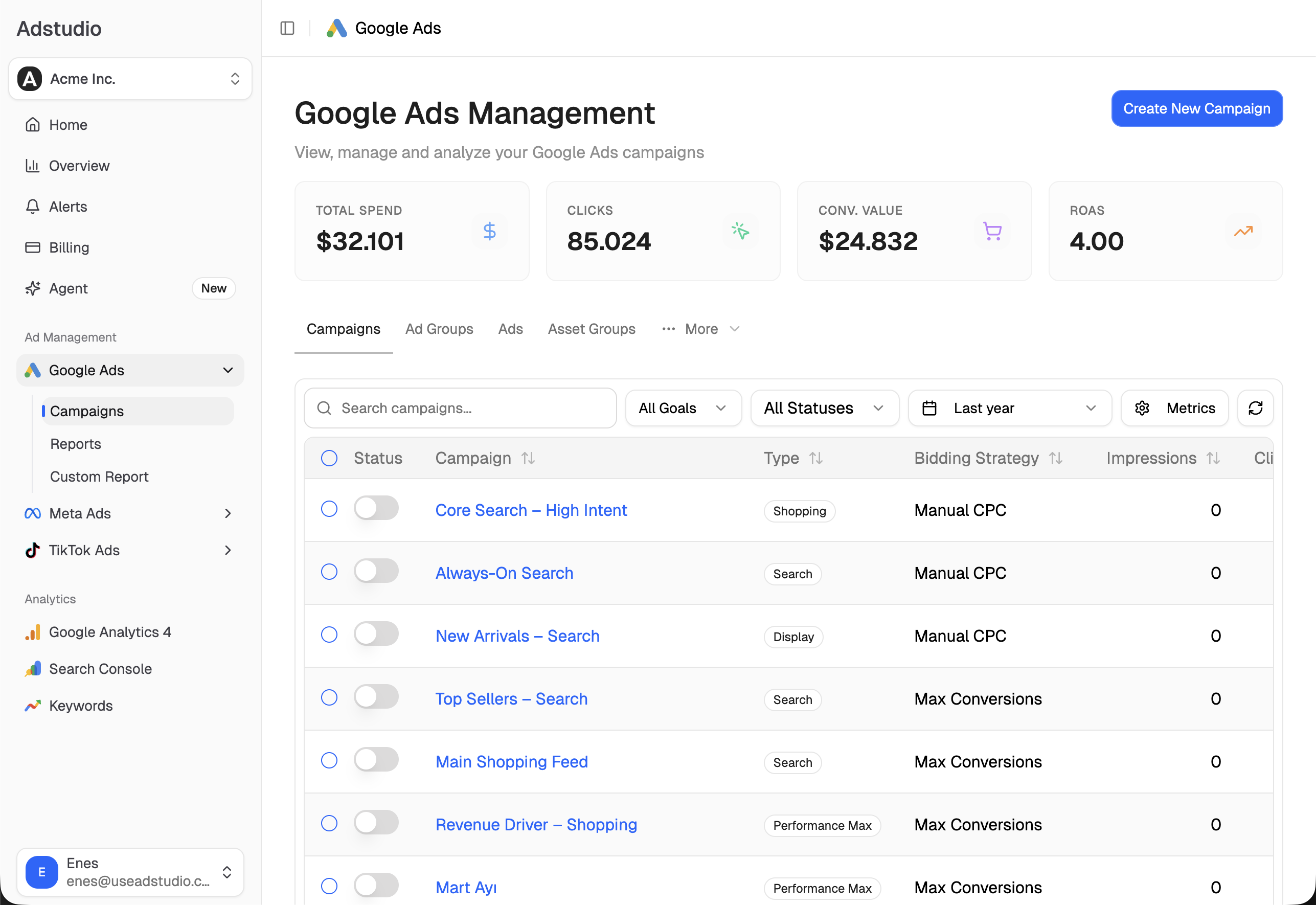
Once it is live, the same chat edits it: change the priority or feed label, switch the bid strategy, set ad group and product group bids, add, split or exclude product groups, add an ad group, set device bid adjustments or an ad schedule, and pause or enable it. Ask how each product group is doing and you get the tree with each group's own bid and results. Adstudio works the same way for Meta Ads and TikTok Ads, and plans start at $19/month.
FAQ
Do I need Merchant Center to run Google Shopping ads?
Yes. A Standard Shopping campaign advertises products from a linked Merchant Center account, and you choose that account when you create the campaign. It can't be changed afterwards (source).
Is Standard Shopping still available in 2026?
Yes. Shopping is still a campaign type in New campaign, and Google's setup guide covers it. Google offers Performance Max during setup, but you can continue with a Shopping campaign.
Can I run Standard Shopping and Performance Max on the same products?
Yes. Since Google's October 2024 change, Ad Rank decides which of the two serves for a product, rather than Performance Max winning automatically.
Can I add keywords to a Shopping campaign?
No. Shopping ads are matched to searches from your product data, so titles and descriptions in the feed do that job. You can add negative keywords to stop searches you don't want.
How long does a new Shopping campaign take to start showing?
Google says reviews can take 24 to 48 hours, and a campaign on Smart Bidding can show "Learning" for up to 7 days (source). If nothing shows after that, open Products → Diagnostics.
Why can't I pick Target ROAS for my Shopping campaign?
Target ROAS and Maximize conversion value need conversion data (source). In an account without purchase history, start with Manual CPC or Maximize clicks and switch once conversions with values are recorded.