To check if your Meta pixel is working, open your site with Meta Ads Data Advisor, the Chrome extension that used to be called Meta Pixel Helper, and confirm the pixel and its events show as Active. Then fire events through the Test events tool in Events Manager, read the pixel's Overview for events received, discarded and processed, and confirm your ad set points at that pixel and the right conversion event. Meta says server events should be verifiable in Events Manager within 20 minutes, so a pixel that looks quiet right after setup is not necessarily broken. Adstudio runs the account-side check from chat: ask it to check your Meta pixel and it reads when each pixel last fired, the events Meta received by name, and how many came from the browser versus the Conversions API.
TL;DR
- On the page: Meta Pixel Helper is now Meta Ads Data Advisor. A badge on its icon counts the pixel events on the page; no badge means no Meta pixel was found (Meta for Developers).
- Live test: Events Manager → your pixel → Test events. Button clicks and custom conversions that Data Advisor can miss show up here.
- Data quality: the pixel's Overview shows events received, discarded and processed; Event Match Quality is scored 1 to 10 and Meta recommends 6.0 or higher.
- In the campaign: the ad set must optimize on the same pixel and the right event, or a working pixel feeds nothing to it.
- New since August 2026: a pixel set up through Data Advisor can add standard events automatically. Check which events are yours and which Meta added.
How do I check if my Meta pixel is working, step by step?
Work through four checks in order. Each one rules out a different layer: the code on the page, the events reaching Meta, the quality of those events, and whether your campaign is actually using them.
1. Is the pixel on the page? Use Meta Ads Data Advisor
If you go looking for Meta Pixel Helper in the Chrome Web Store, you will find Meta Ads Data Advisor. Meta's Data Advisor page calls it the former Pixel Helper, says existing installs are updated automatically and that the diagnostic features still work. It runs in Chrome and Microsoft Edge.
- Install it from the Chrome Web Store (or Edge Add-ons) and pin it to the toolbar so you see event counts while you browse.
- Turn off your ad blocker for your own site. Ad blockers can stop Data Advisor from detecting the pixel at all.
- Open your site. A dot or number on the icon is the count of pixel events fired on that page. No badge means no Meta pixel was detected.
- Click the icon to open the side panel. It lists every pixel found, whether it loaded, and its events. Select an event to see its parameters, content IDs, the URL it fired on and any Advanced Matching data.
- Do what a customer does: view a product, add to cart, start checkout, reach the order confirmation page. Show all events keeps a log across your browsing session, which helps when a funnel spans several pages.
Data Advisor gives the pixel and each event a status:
| Status | On the pixel | On an event |
|---|---|---|
| Active | Working correctly | Being sent correctly |
| Warning | The pixel isn't set up correctly | Issues that may affect performance |
| Inactive | Not sending events correctly | Not currently sending data |
| Error | — | A critical configuration issue that needs action, such as blocked parameters, duplicates or a compliance violation |
| Auto-detected | — | Detected from site activity without added code |
A pixel can show Active while one of its events shows a Warning, so read each event.
2. Does Meta receive the events? Use the Test events tool
Data Advisor only sees what your browser fires. To confirm Meta actually received an event, open Events Manager, select your pixel and go to Test events. Meta's guidance is to use this tool for in-depth troubleshooting, and especially for button clicks and custom conversions: per the Data Advisor page, those may not appear in the extension even when they are tracked correctly.
Browse your site while the tool is open and watch each event arrive with its parameters. For a purchase, check that the value is a number and the currency is set: without them, Meta can count the purchase but cannot report a return on spend.
Testing server events from the Conversions API works differently. The tool generates a test code that you send as test_event_code, and server events appear once the request is sent. One detail most guides skip: Meta's Conversions API documentation says events sent with a test code are not dropped and are used for targeting and ads measurement. Remove the test code before the integration goes live.
3. Is the data good? Read the Overview and Event Match Quality
Meta's setup verification guide has you check events in Events Manager within 20 minutes of sending them. On the pixel's Overview you see:
- Events received before deduplication, events discarded for consent or policy reasons, and events processed.
- Connection Method, which shows whether each event came from the browser, the server or both.
- Event Details for each event, with tabs for Event Freshness (how long events take to reach Meta, from real time to weekly) and Event Deduplication.
- Event Match Quality, scored from 1 to 10. Meta recommends 6.0 or higher, and clicking the score shows its suggestions for raising it.
A low match score usually means events arrive with little customer information to match on. Advanced Matching sends fields such as email and phone with pixel events. It can be turned on automatically in Events Manager or added manually to the base code, where the pixel hashes the values with SHA-256 before they leave the browser.
4. Is your campaign using the pixel? Check the ad set
A working pixel does nothing for a campaign that optimizes on a different one. In Ads Manager, open the ad set and look at its conversion settings: the pixel (dataset) and the conversion event must be the ones you just tested. In Meta's API the two travel together on the ad set: a pixel_id requires a custom_event_type, the event the ad set optimizes for.
This is where copied campaigns and rebuilt sites go wrong: a duplicated ad set keeps the old pixel, and a new store theme can fire Purchase under a pixel no ad set uses.
What do the Meta Ads Data Advisor errors mean?
These are the setup errors Meta lists on its Data Advisor page, with the fix for each:
| Data Advisor finding | What it means | Fix |
|---|---|---|
| Duplicate pixel code | The same pixel is on one page more than once | Remove the extra copy, often a hard-coded snippet next to a store integration or tag manager |
| Base code placement | The base code sits outside the page's head | Move it into the head so it loads before events fire |
| One conversion event per page | Several conversion events fire on a page with no user action | Keep one; fire others only on a click or similar action |
| iframe and tag manager | Browser or privacy settings may block the pixel | Check those settings aren't blocking it |
| Missing parameters | An event lacks fields such as content_ids, value or currency | Add the parameters Data Advisor names |
Duplicate pixel code deserves the most attention before a sales peak. Two copies of one pixel on the confirmation page can fire Purchase twice, and Meta's ROAS then looks better than your store's revenue. The same over-counting happens between the pixel and the Conversions API when event IDs don't match, covered in how to stop Meta counting purchases twice.
Why is my Meta pixel not tracking purchases?
When Ads Manager shows spend and clicks but no purchases, check these causes in order:
- It is too early. Give new events time to appear in Events Manager before you change anything. Edits restart the learning phase.
- The ad set optimizes on a different pixel or event. Check the ad set's conversion settings against what Test events shows.
- Purchase never fires on the confirmation page. Hosted checkouts and separate thank-you templates are the usual culprits. Data Advisor on that page answers it in a minute.
- The event fires under the wrong name. A custom event instead of the standard Purchase means the ad set never sees it.
- Events are discarded. The Overview shows events Meta discarded for consent or policy reasons. Browser events also depend on the visitor's browser and blockers, which is the gap the Conversions API covers.
- The value is missing or malformed. Purchases count but ROAS reads zero. Send a numeric value and a currency with every purchase.
If the campaign isn't spending at all, that is a delivery problem rather than tracking: see why Meta ads aren't spending.
Should I let Meta add events to my pixel automatically?
Per the Data Advisor page, since August 3, 2026 the option to automatically detect and add standard events is pre-selected when you set up a new pixel through Data Advisor. The extension may also suggest standard conversion events such as Purchase, Lead or AddToCart, and those suggestions are applied by default. You can deselect both during setup and turn the feature off later in Events Manager under Settings.
Our view: automatic events are a useful safety net on a site with no tracking at all. On a store that already sends Purchase from its own code or a store integration, know exactly which events came from where before a campaign optimizes on them. In Data Advisor, events Meta found on its own are marked Auto-detected. If one sits beside your own Purchase event on the same page, find out which one your ad set optimizes for before you trust the count.
This is one of two pixel changes Meta made this autumn. The other, measuring conversions on the visitor's own device from November 12, is explained in should you turn off Meta's measure conversions on customer devices.
How long does it take for Meta pixel events to show up?
There are three clocks:
- Data Advisor shows events as they fire on the page in front of you.
- Test events shows browser events while you test, and server events once the request is sent.
- Events Manager Overview should show server events within 20 minutes of sending, per Meta's verification guide. For a new pixel, Meta's setup guide says to wait a few minutes and refresh if the first PageView is not there yet.
So after any tracking change: test on the page, test in Events Manager, then read the Overview.
How Adstudio helps you catch a broken Meta pixel
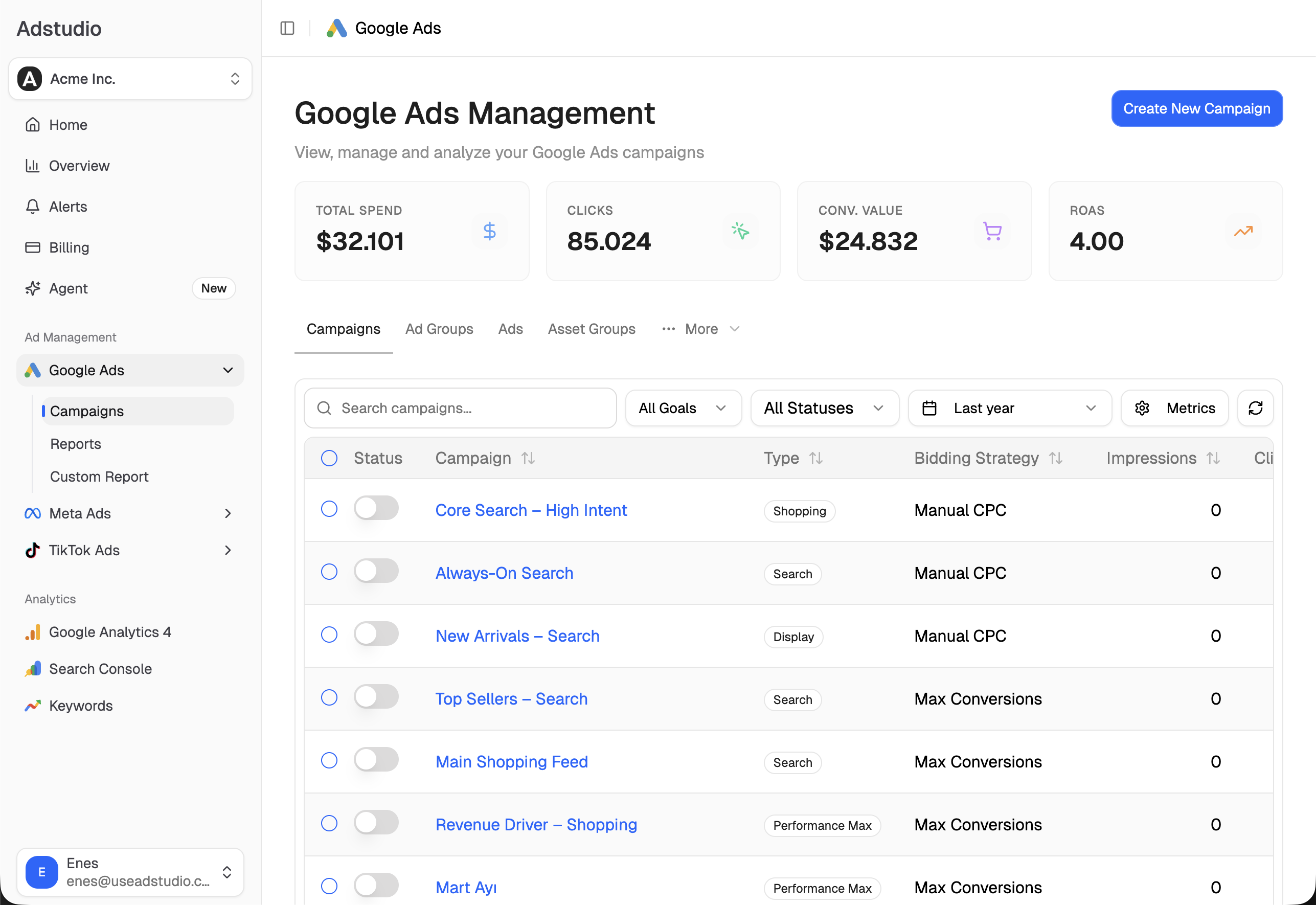
A broken pixel shows up as a campaign that keeps spending while results go quiet. Adstudio connects Meta Ads, Google Ads, TikTok Ads, Google Analytics 4 and Shopify in one workspace, so you see it the day it happens.
- Ask "Check my Meta pixel". The AI assistant for Meta Ads reads every pixel on the ad account: when it last fired, the events Meta received by name over the period, how many came from the browser and how many from the Conversions API, and the share of each event that carried customer information, the raw material of Event Match Quality. A Purchase count that collapsed while PageView kept flowing tells you which page to open in Data Advisor.
- Spend with zero results, flagged. Ask for recommendations and Adstudio lists active Meta campaigns that spent with no results, counted by what each ad set optimizes for. Sales campaigns with no results come with a reminder to check that the pixel is firing correctly.
- Results counted the way each ad set defines them. Purchases, leads and other results are never blended into one number, so a campaign whose event stopped firing doesn't hide behind one that is still counting.
- Meta next to your other sources. Ask "Put Meta purchases and purchase value next to Shopify revenue and GA4 purchases for the last 30 days" and see whether Meta moves with your real orders. A flat line on one source while the others keep moving points at tracking, not demand. Our guide to seeing Google, Meta and TikTok spend in one report shows the cross-platform view, and why Meta and GA4 numbers don't match explains the gaps that are normal.
- An alert the day it breaks. Set an Adstudio alert on a Meta conversion action, such as purchases below a daily threshold, at account, campaign, ad set or ad level. Here is how to set up ad spend alerts.
- Campaigns built on a live pixel. When you create a Meta Sales campaign from chat, the card shows the ad account's pixel with when it last fired and its events over the past 28 days, and warns you when the pixel has recorded no events before anything is created.
Black Friday is November 27, 2026: run the four checks this week, as our Black Friday checklist advises for tracking. The TikTok version of this audit is how to check if your TikTok pixel is working, and the Google one is how to check Google Ads conversion tracking. Adstudio plans start at $19/month.
FAQ
What happened to Meta Pixel Helper? Meta renamed it Meta Ads Data Advisor. Existing installs updated automatically and the diagnostic features still work; it now opens in a side panel. Look for "Meta Ads Data Advisor" in the Chrome Web Store or Edge Add-ons.
How do I know if my Meta pixel is firing? Open the page with Meta Ads Data Advisor. A number on the icon counts the pixel events fired on that page, and the side panel shows each event and its status. To confirm Meta received them, watch the Test events tool in Events Manager while you use your site.
Why does Data Advisor show no pixel on my site? No badge means no Meta pixel was detected on that page. Turn off your ad blocker for the site first, since blockers can stop detection. If it's still empty, the base code is missing from that page or blocked by your tag manager or consent setup.
Why doesn't my button click event show up in Data Advisor? Meta says button-click events and custom conversions may not appear in Data Advisor depending on your site setup, even when they track correctly. Check them in the Test events tool in Events Manager instead.
What is a good Event Match Quality score on Meta? Event Match Quality is scored from 1 to 10, and Meta recommends 6.0 or higher. Clicking the score in Events Manager shows Meta's suggestions, which usually come down to sending more customer information through Advanced Matching or the Conversions API.
Do Meta test events count in my reports? Events sent through the Conversions API with a test event code are not dropped: Meta says they are used for targeting and ads measurement. Remove the test code before your integration goes live.
Platform behaviour described as of November 2026, per Meta for Developers documentation.