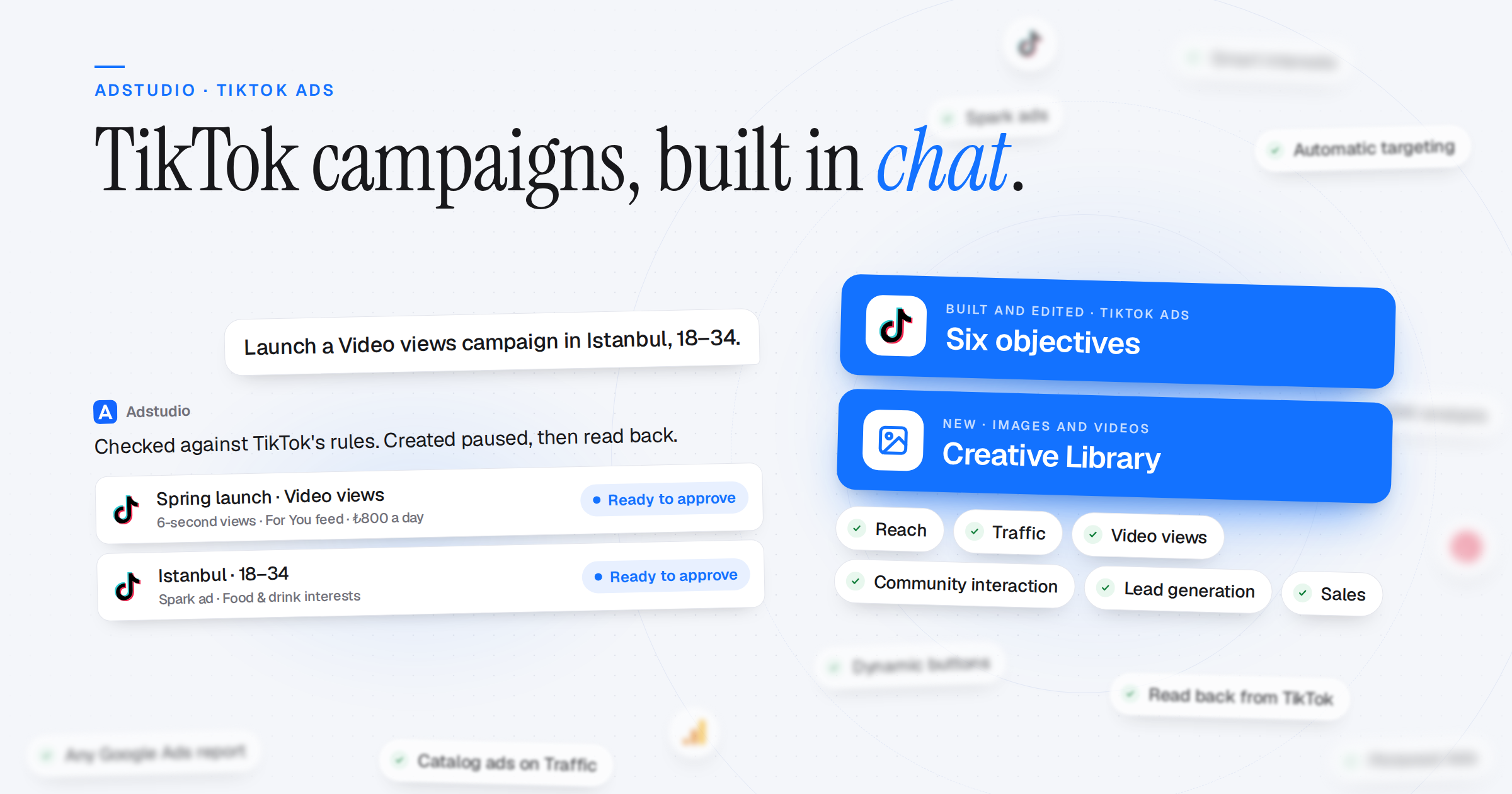
The Adstudio assistant now builds and changes TikTok campaigns, the same way it already does on Google and Meta. Images and videos you use anywhere in Adstudio now live in one Creative Library. Pinterest Ads can be connected, and the assistant can analyze your Google Analytics 4 property.
TikTok Campaigns, Built and Edited in Chat
- Six Objectives: Reach, Traffic, Video views, Community interaction, Lead generation (website) and Sales (website)
- Audience: Places, ages, gender, languages, interests and interest keywords, hashtags, creators followed, smart interests and automatic targeting. Names like "Istanbul" or "Food & drink" are matched to TikTok's own lists, and anything that matches nothing stops the card with suggestions
- Delivery: Campaign or ad group budgets, schedule and dayparting, frequency, bidding, accelerated delivery, devices, networks and brand safety
- Ads: Upload a video or pick one from your Library, or run a Spark ad from a post already on your TikTok account. Add a button, a dynamic button, URL parameters, tracking, a disclaimer or a website info card
- Change What Runs: Rename, change budgets, status, targeting, end dates, frequency and ad text, add ad groups to an existing campaign, or copy an ad group's settings into a new one
- Safe by Default: Everything is created paused and read back from TikTok after you approve. Settings TikTok accepts but silently ignores are refused on the card with the reason, instead of reported as done
Creative Library
- One Place for Your Media: A new Library page holds every image and video in the workspace: uploads, files added in chat, and creatives imported from Meta and Google Ads. Rename, tag, search and remove them
- Chat Uploads Saved: Images and videos you drop into the assistant are saved to the Library and can be reused in any later campaign. The same file is never stored twice
- Where It Ran: Each file lists the campaigns it was used in, with their spend, impressions and clicks
- Swap on the Card: Replace a logo or image on a Google approval card from the Library. Google checks the change again before you apply
Pinterest Ads
- Connect Your Account: Connect Pinterest Ads from the sidebar and pick the ad account in Settings → Integrations
- Campaign Tables: Campaigns, ad groups and ads with spend, impressions, clicks, CTR, CPC, CPM and conversions, in your account's currency
Analysis
- Google Analytics 4: Ask why revenue dropped on the site, which landing pages lose engagement, or which channel really drives conversions. The assistant works out your business model first and only talks about conversions when it knows what counts as one
- Any Google Ads Report: The assistant can read any Google Ads report field, including Performance Max search terms and placements, asset metrics and conversion lag, instead of saying the data isn't available
- Deeper Meta Reads: Catalogs and product feeds, video watch time against video length, customer segments, ad rankings and the account settings an expert checks
Meta
- Catalog Ads on More Objectives: Traffic and Engagement campaigns can now show products from your catalog
- Messenger Greeting: Set the welcome message for Messenger and Instagram Direct on Traffic campaigns
Fixes
- Dashboards: Totals now match each platform's own numbers, Refresh asks the platforms again, and charts and KPI cards fit their cards
- Google Ads and Meta Tables: Budget edits save, lifetime budgets show as lifetime, bulk Enable and Pause work, and "Show removed" lists removed items
- Reports: Google country, region and city breakdowns work, and field combinations Google refuses are greyed out